It lets you save any web site you visit to your own Draggo page.
 ';?>
. Choose "Add to Favorites". Then add it to your "Favorites bar" folder.
';?>
. Choose "Add to Favorites". Then add it to your "Favorites bar" folder.
 ';
}
elseif ($browserType == 'Internet Explorer 7') { ?>
';?>
. Choose "Add to Favorites". Then add it to your "Links" folder.
';
}
elseif ($browserType == 'Internet Explorer 7') { ?>
';?>
. Choose "Add to Favorites". Then add it to your "Links" folder.
 ';
}
else { ?>
';
}
else { ?>


The browser button is designed to work with Firefox, Internet Explorer,
Safari and Chrome browsers. It may not work as intended with your
browser. However, you may try to install it with the instructions below.
Don't worry if you see a
 symbol while you drag it.
We notice you are using Chrome for Mac. Please follow our
Special Chrome for Mac setup instructions.


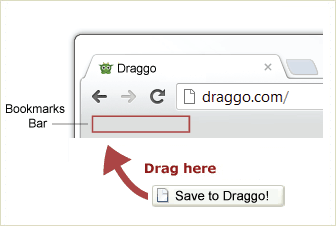

Go to your web browser menu and select View > Toolbars > Bookmarks Toolbar. Go to your web browser menu and select View > Toolbars > Links Type 'CTRL + SHIFT + B' to make the bookmarks bar visible. Go to your web browser menu and select View > Toolbars > Favorites Bar Right-click the menu bar (top area) of your browser and make sure 'Favories Bar' is selected. Type 'CTRL + B' (Or try 'CTRL + SHIFT +B') to make the bookmarks bar visible. Go to your web browser menu and select View > Toolbars > Bookmarks Toolbar.
Now click the button you just draggedadded to make sure it's working.
